This host
Run jobs on the machine the platform is installed on — ready as soon as it is installed.
VersaDesk Lite | Private AI computing platform
One platform, one way of working. Start using AI on a single machine; when you need more computing power, add other hosts or build a Kubernetes cluster. Computing and data stay inside your company.
One way of working
Administrators connect the machines; users simply create a project, press Run and read the results. Each job runs wherever its project points.
Run jobs on the machine the platform is installed on — ready as soon as it is installed.
Turn spare servers into job runners from the maintenance console, and the platform sends work to them.
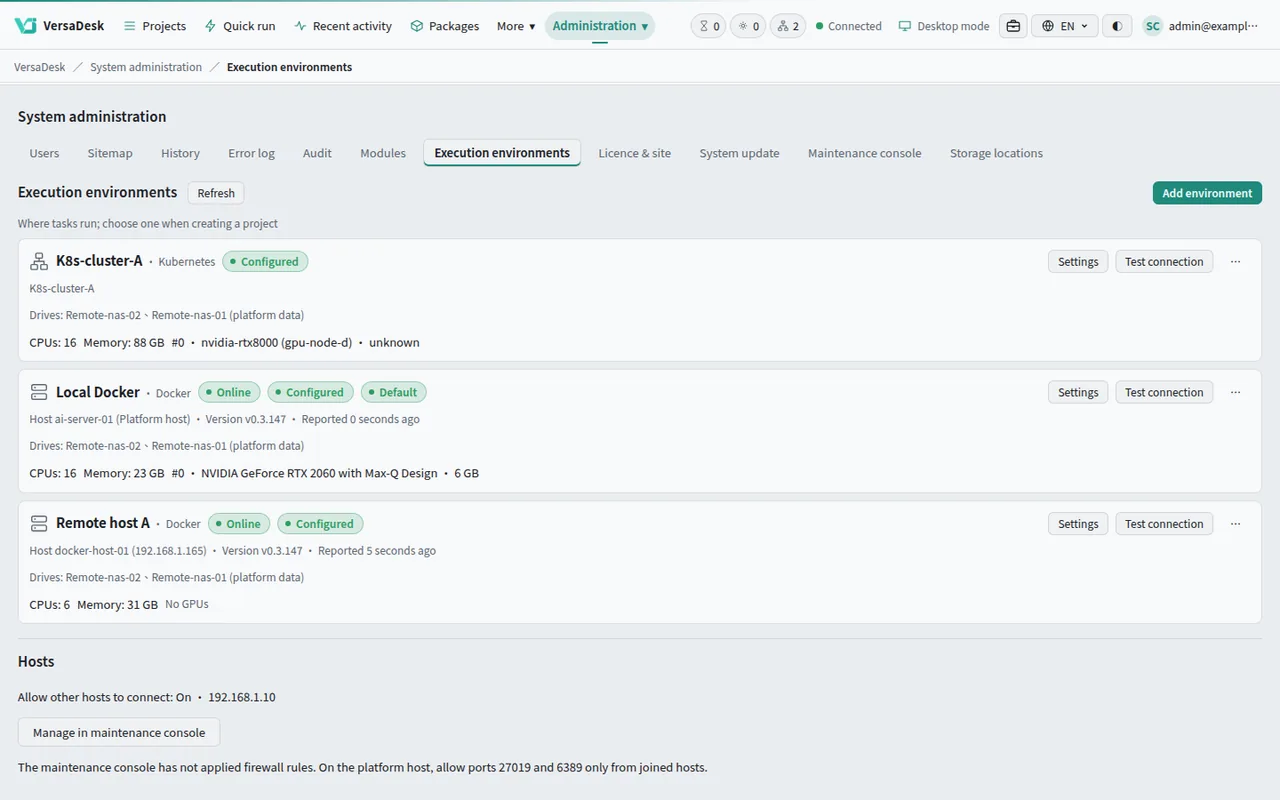
Build one or connect the cluster you already run; every project gets its own space and quota.
Users see exactly the same screens: the same form, the same results, the same terminal.
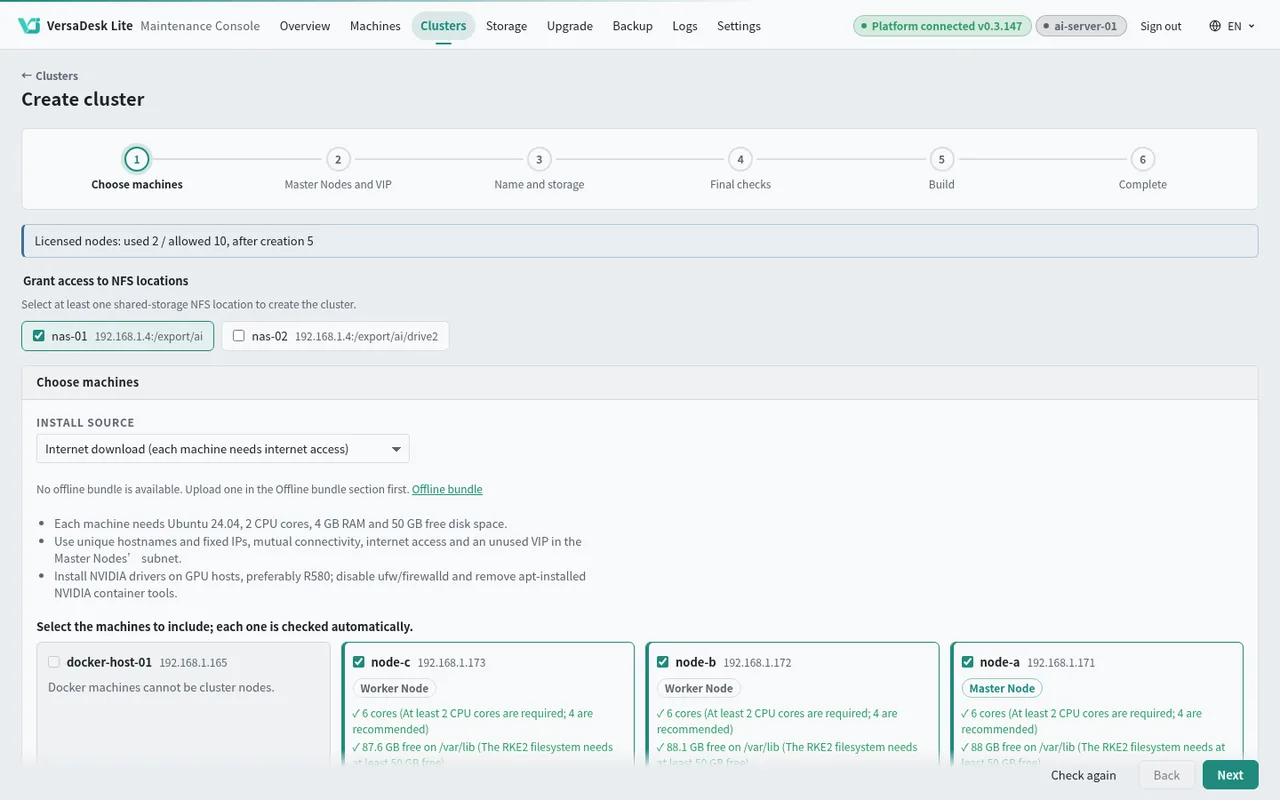
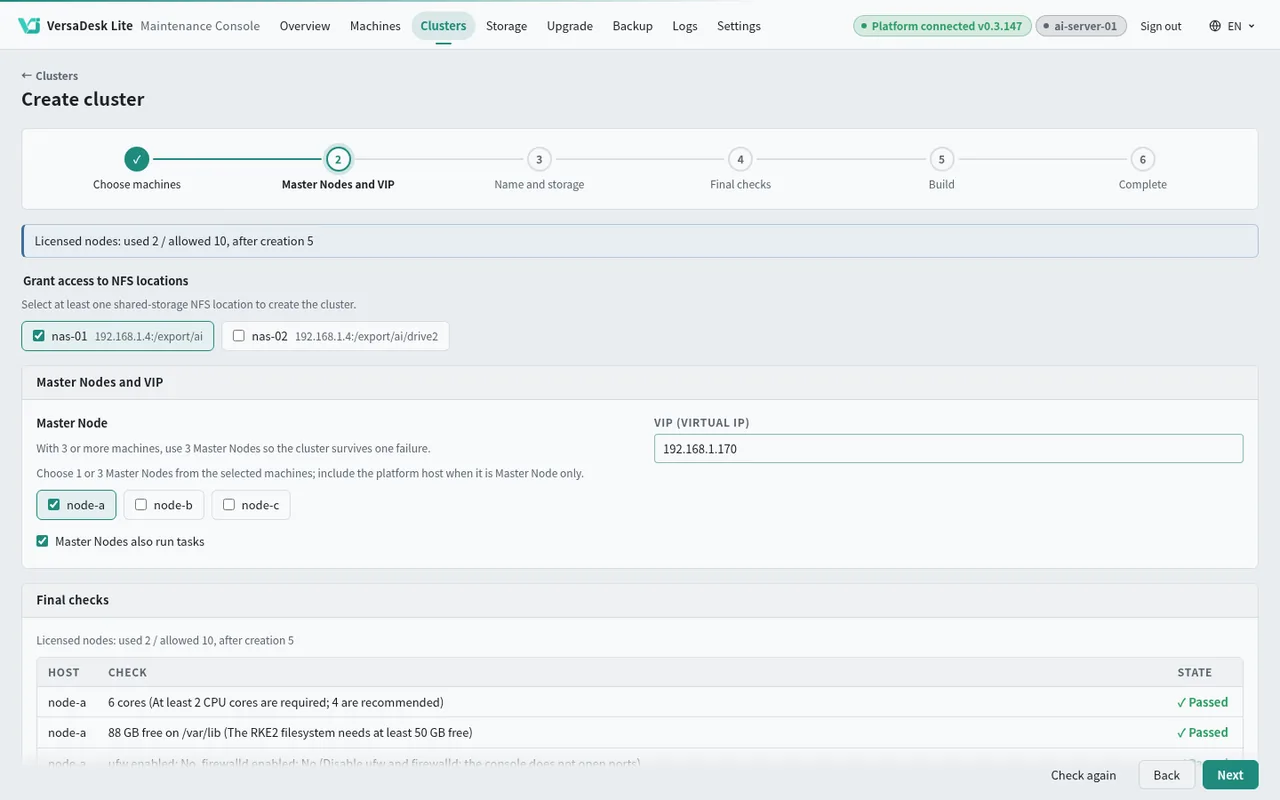
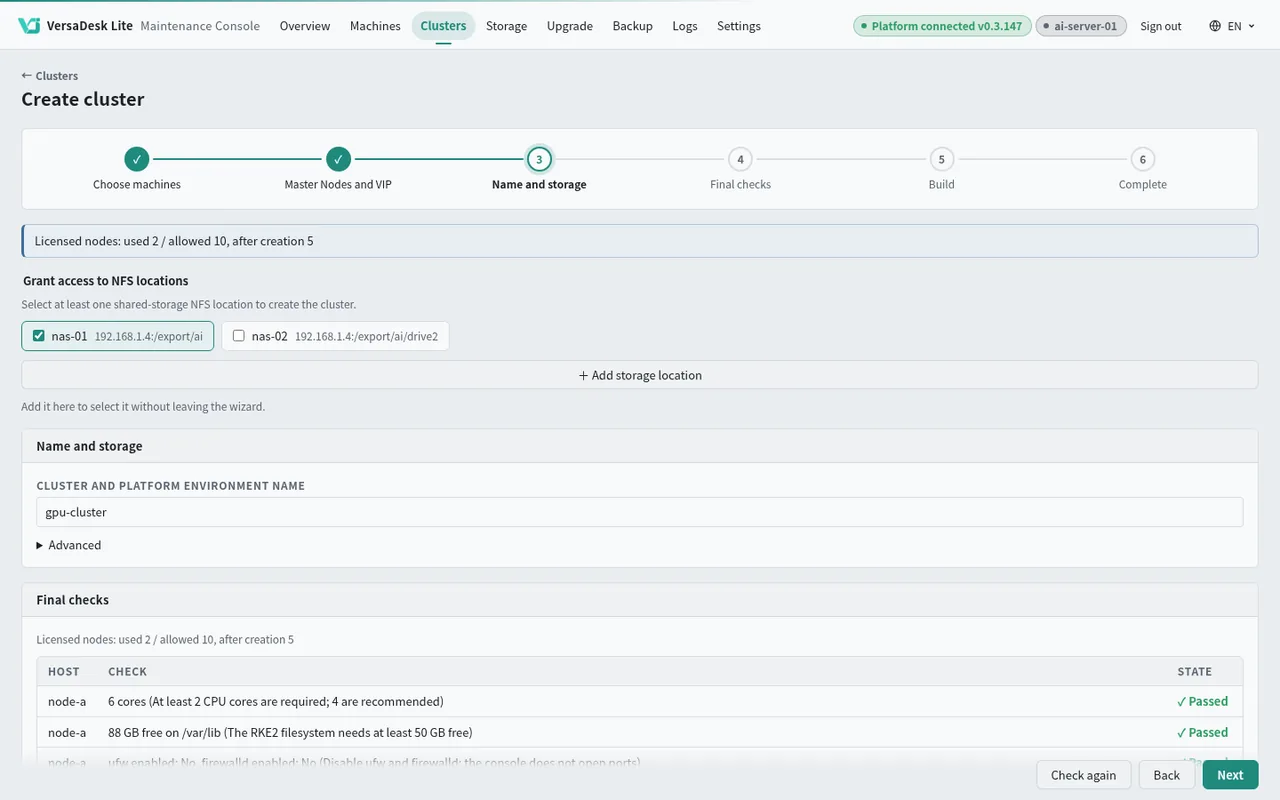
Build a cluster
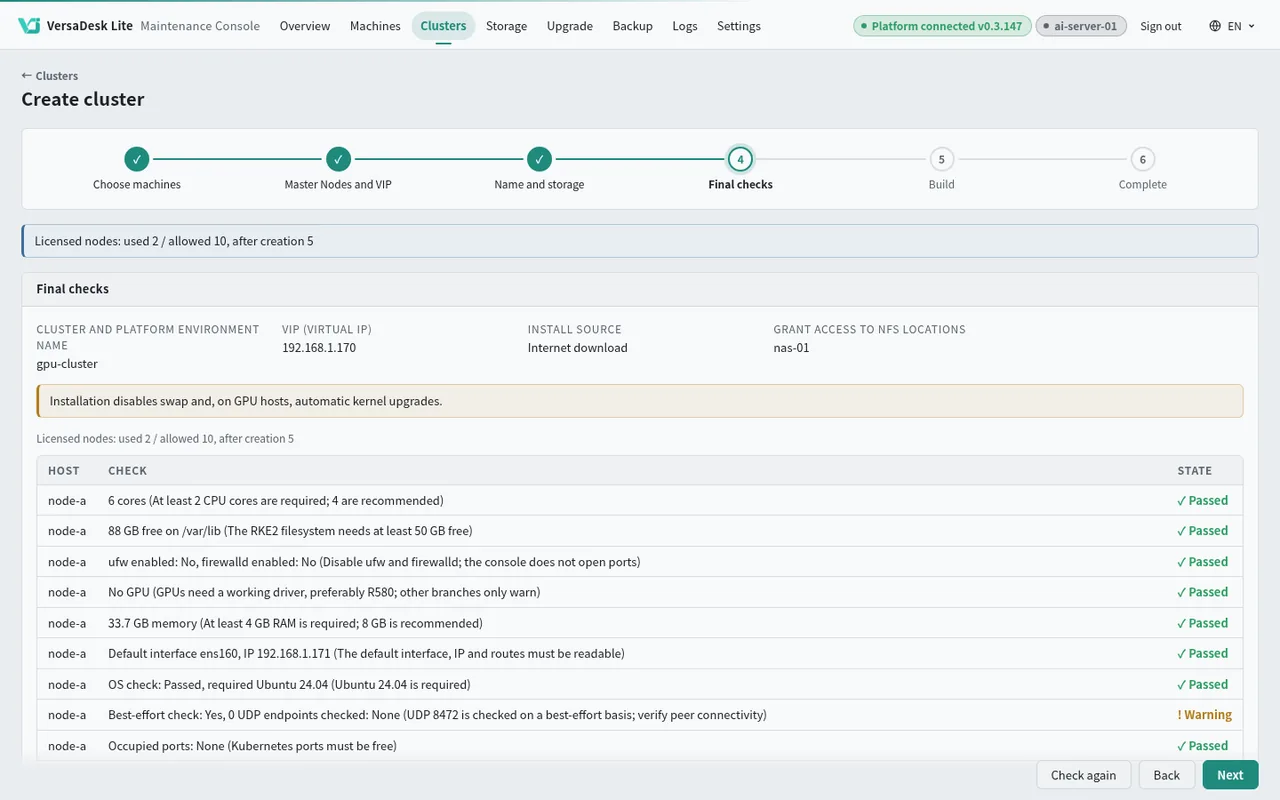
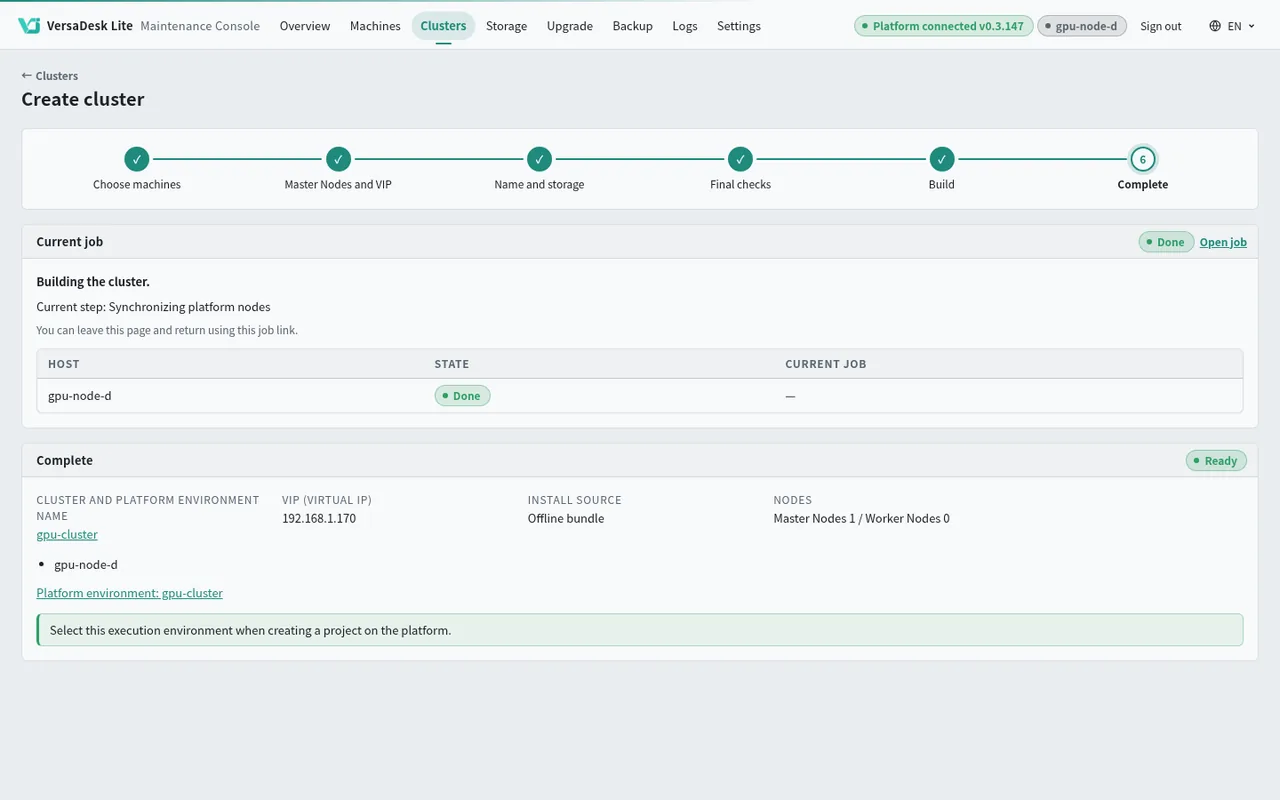
No config files, no commands to memorise. Pick the machines, assign roles and press Create — the platform installs Kubernetes, the GPU components and shared storage in one go.
Connect a cluster
Paste an administrator's settings once. The platform sets up its own working area in the cluster and stays inside it, leaving your existing services alone.
Each project gets its own space in the cluster; projects can't see each other.
Administrators decide how much CPU, memory and GPU each project may use.
Job outputs land in the project folder, just like on a single host.
Kubernetes cluster
Your existing services
The platform's area
GPU
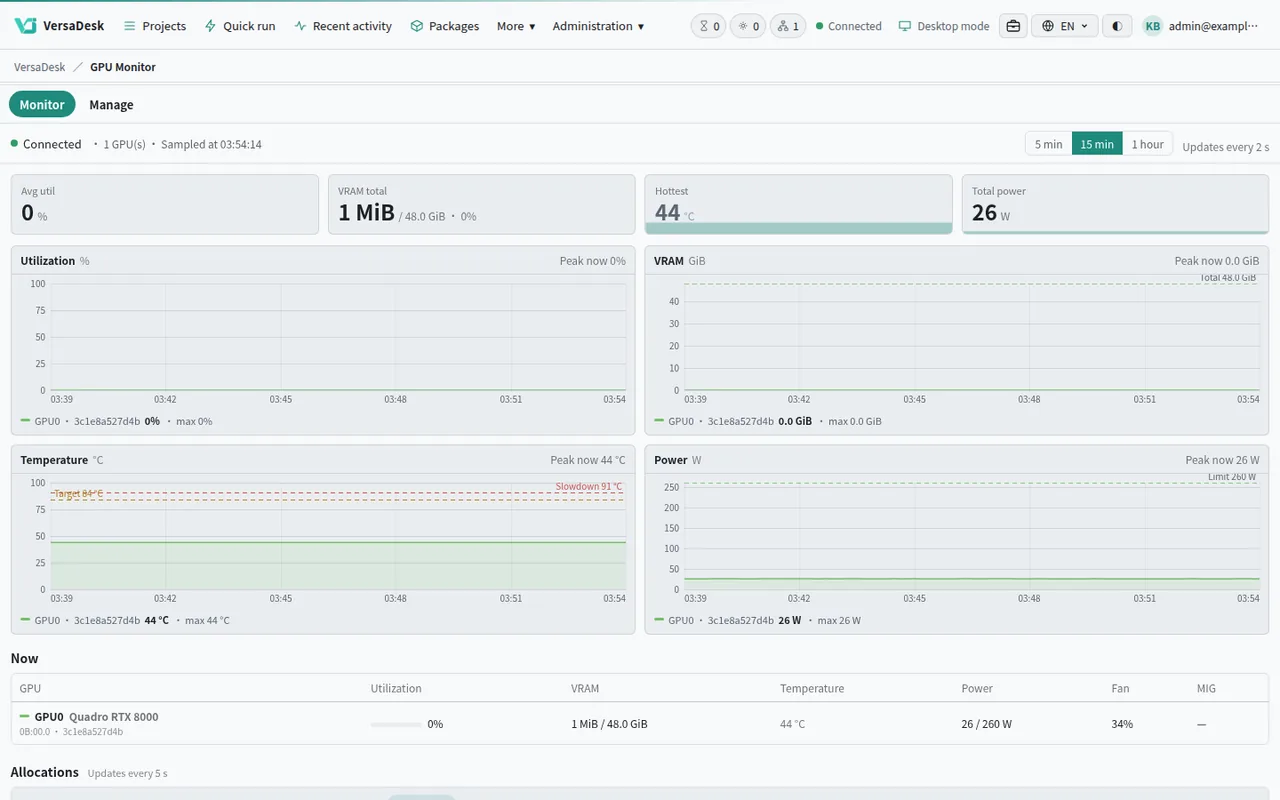
Administrators decide how many cards each project may use and whether it has them to itself or shares them; cards that support MIG can be split into several parts. One screen shows usage on Docker hosts and clusters alike.
A whole card for one project.
Projects take turns; the platform queues the jobs.
One card split into parts for several jobs at once.
Host apps
No more logging in to each machine. Check the status, containers, files and terminals of the platform host and every other host from the browser.
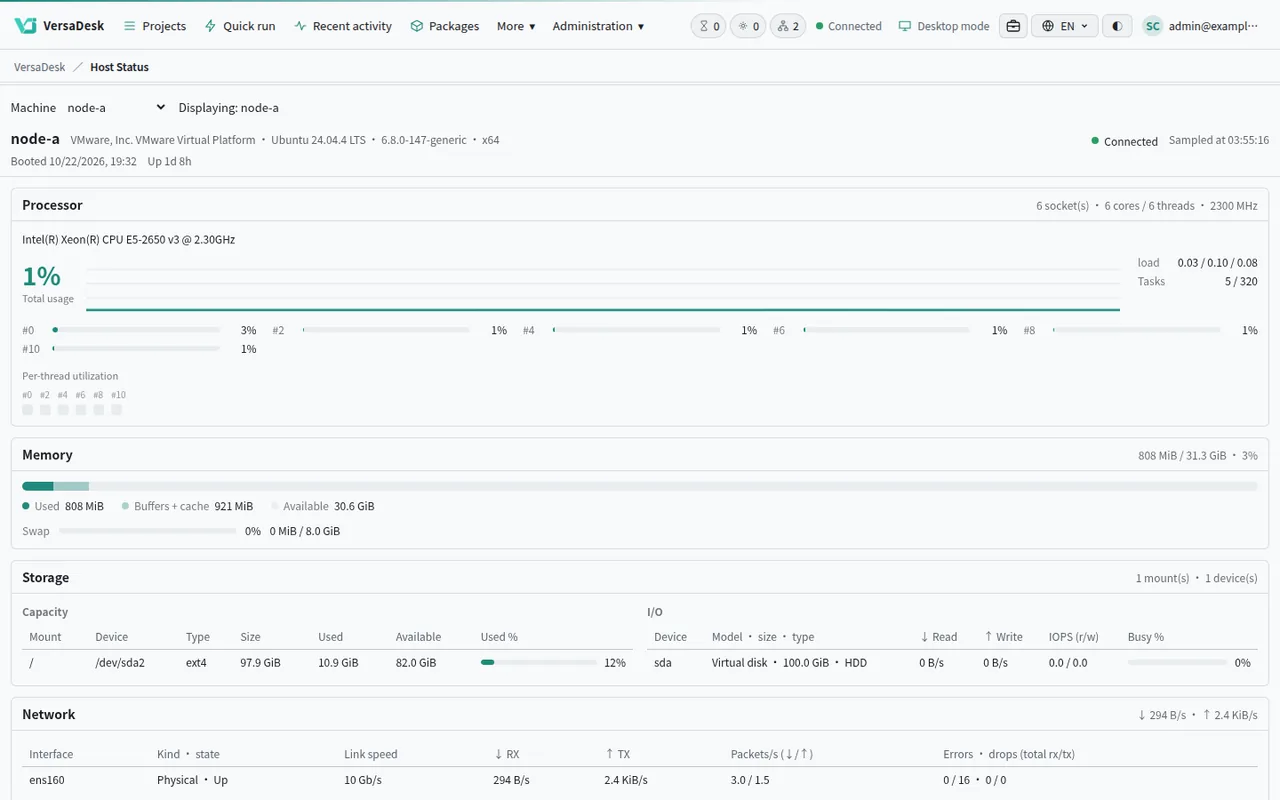
Live CPU, memory, disk and GPU.
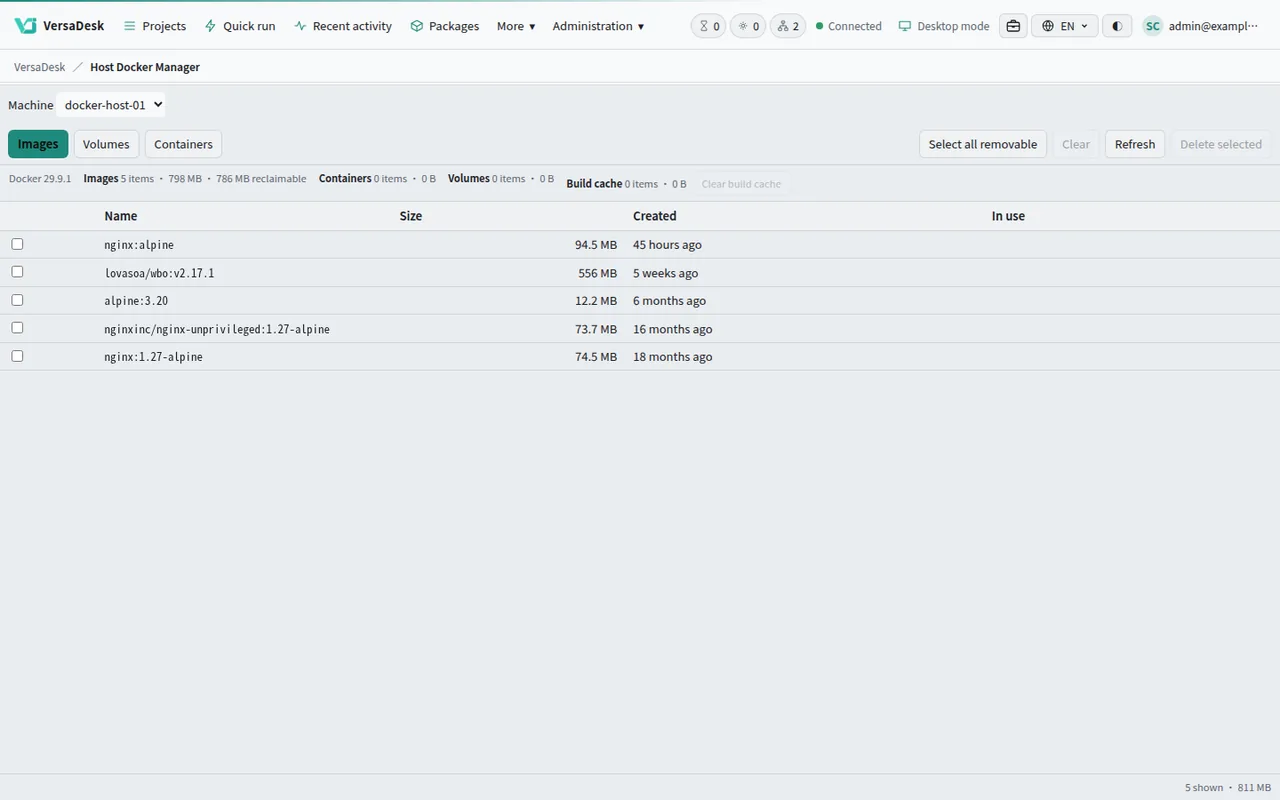
Browse and clean up images and containers.
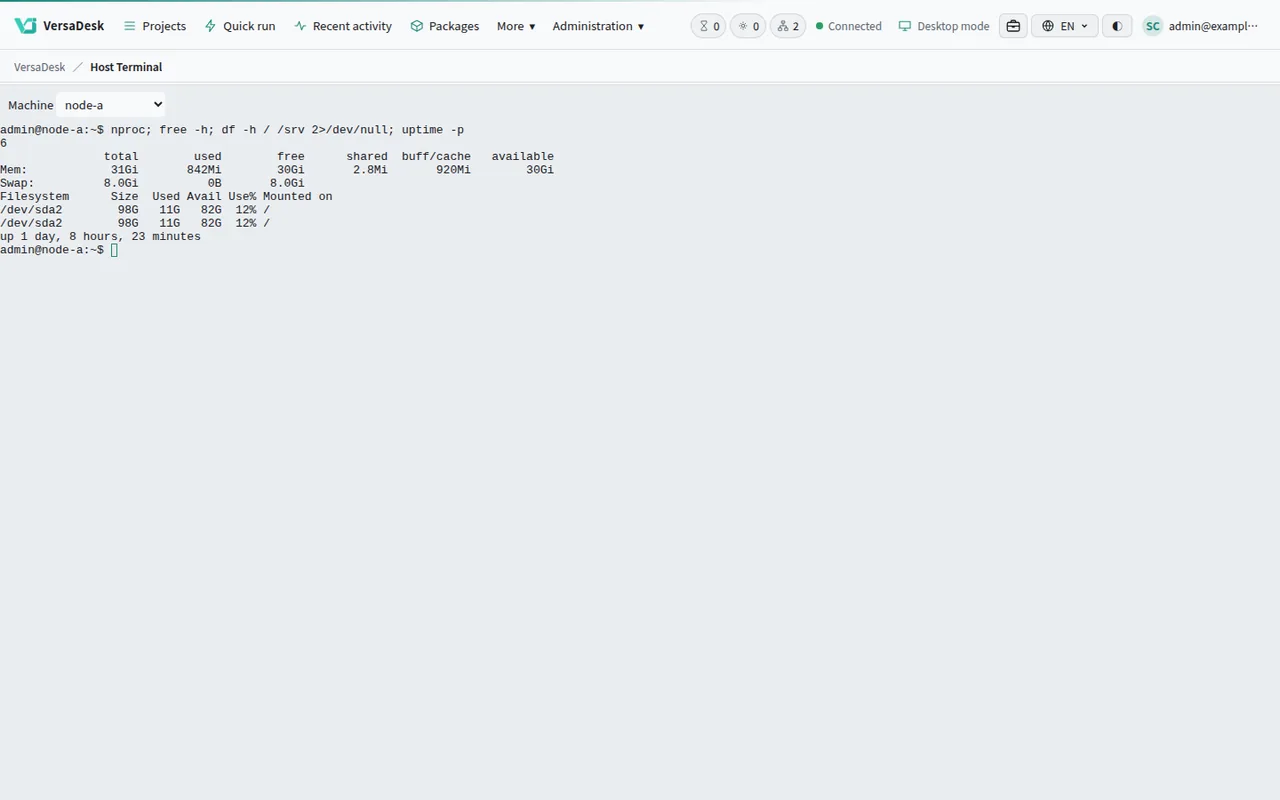
Open a shell as an account on that machine.
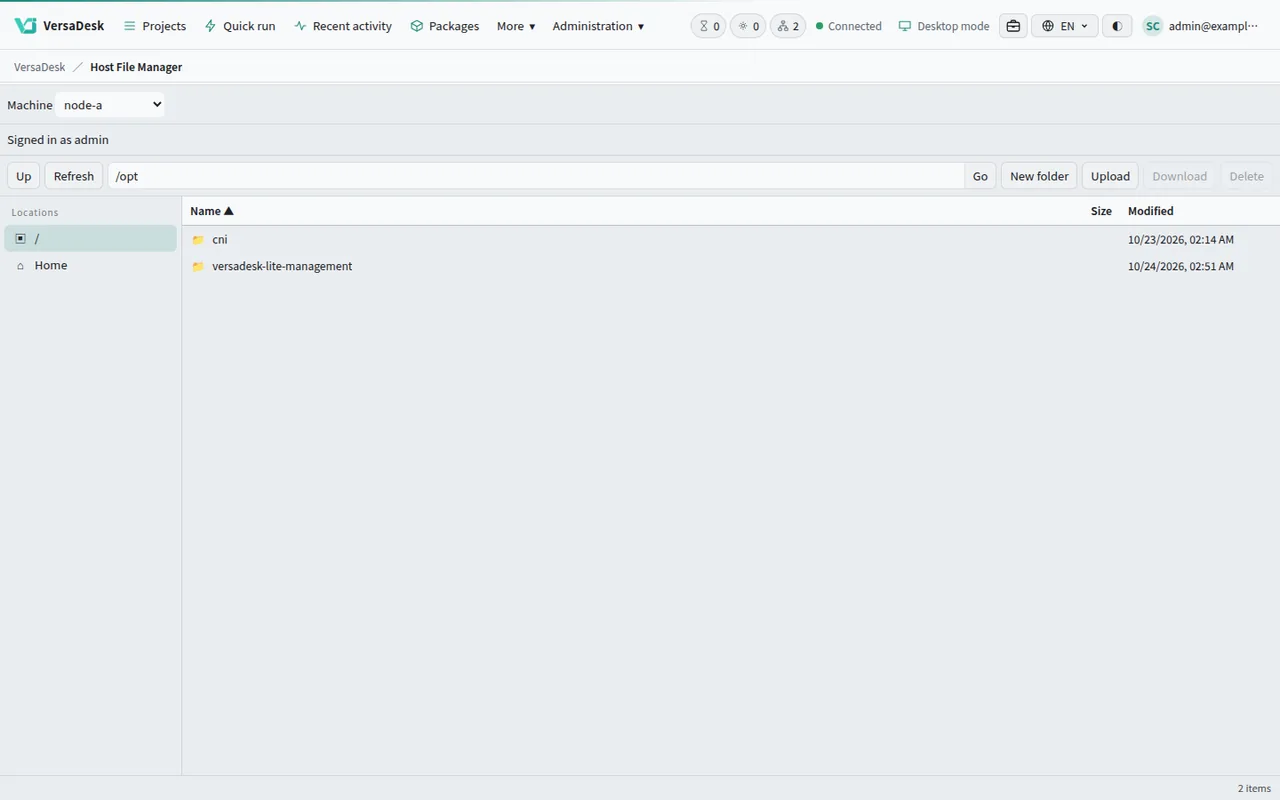
Upload, download and organise files.
Shared storage
Register a NAS once in the console and every host and cluster node mounts it. Whichever machine runs the job, it reads the same project folder.
What you already know
Install AI packages from the App Store in one click, choose the desktop or classic view, and train models in the browser.
AI TRAINING
Every screen below comes from packages actually running.
Fine-tune a language model with LLaMA-Factory, follow the run as it trains, and test it in chat when it is done.
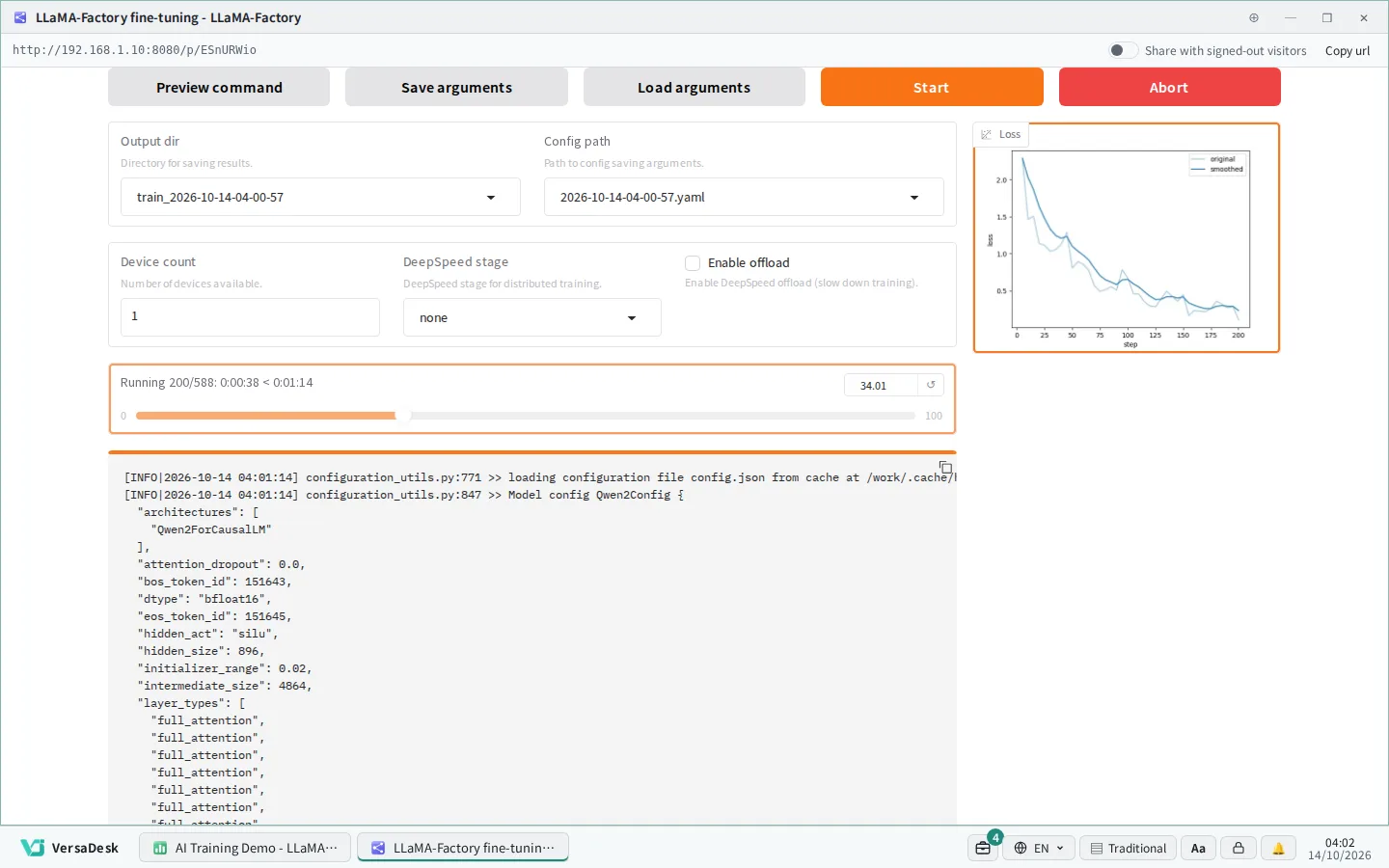
Choose a model and a dataset, press Start, and the training curve updates live.
WHERE IT RUNS
VersaDesk Lite installs on your own Linux machine, x64 or arm64. With an NVIDIA GPU it runs AI training and inference, and your team connects from the browser.
x64 · NVIDIA RTX GPU
One workstation with a GPU lets a small team share AI tools.
x64 · multiple GPUs
On a multi-GPU server the platform assigns GPUs to each project.
arm64 · GB10 unified memory
A desktop AI machine; the platform recognises it and applies its own settings.
See VersaDesk on DGX SparkUbuntu and Debian (x64 / arm64) · Docker set up by the installer · General tasks run without a GPU
EASY SETUP
Run one command on the machine, then finish the setup wizard in the browser. The database and other services are created by the platform; there is nothing else to install.
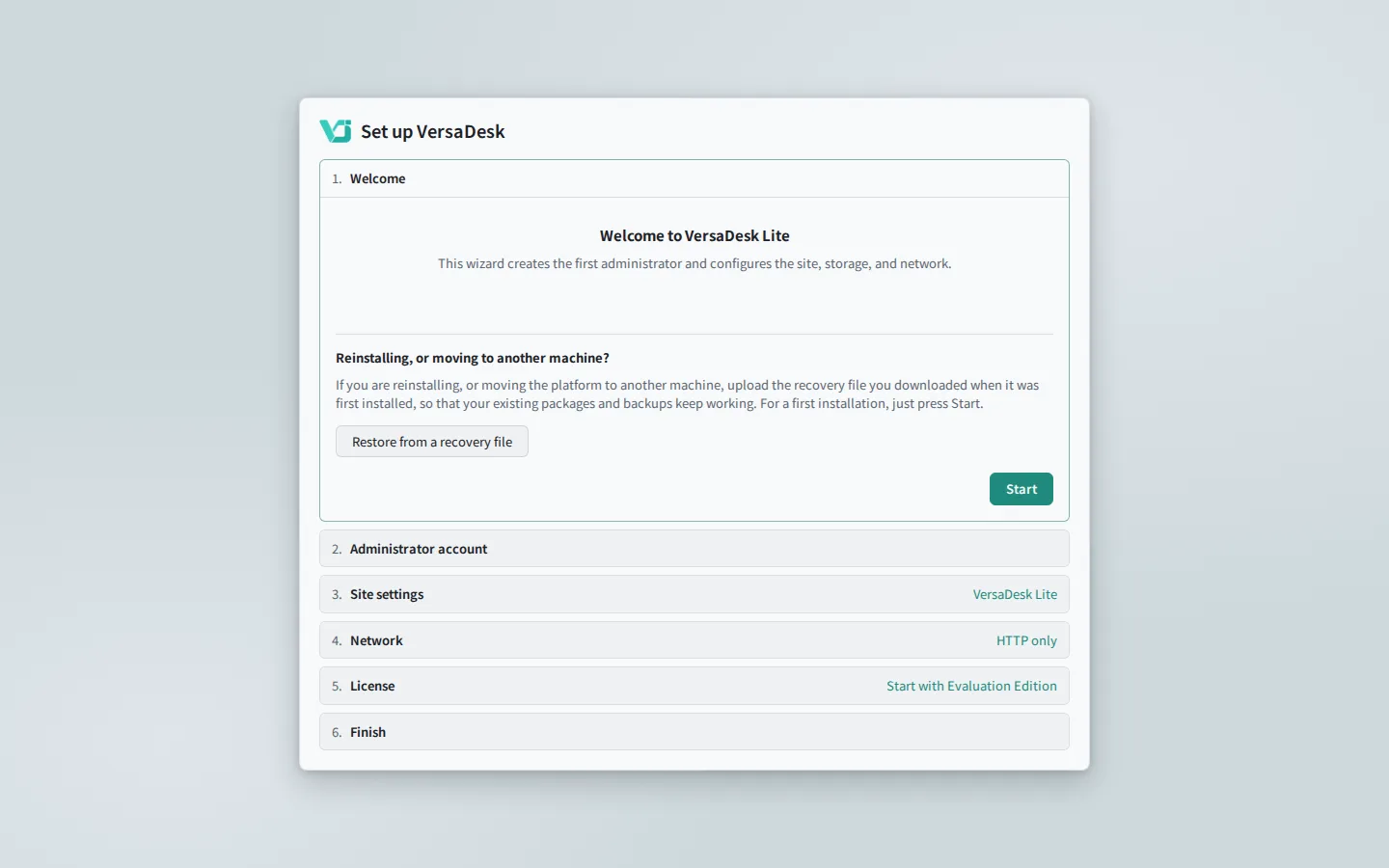
Run one command on the machine; the installer does the rest.
One file each for x64 and arm64, holding the platform and the maintenance console.
The installer checks the environment and completes the setup.
The wizard creates the administrator and sets up the site and network.
New releases install from the web interface.
YOUR WORKFLOW
Official training packages or workflows not quite right? Write your own Runbook with your own image, script and parameters; the platform builds the run form from it and runs it on the same GPUs.
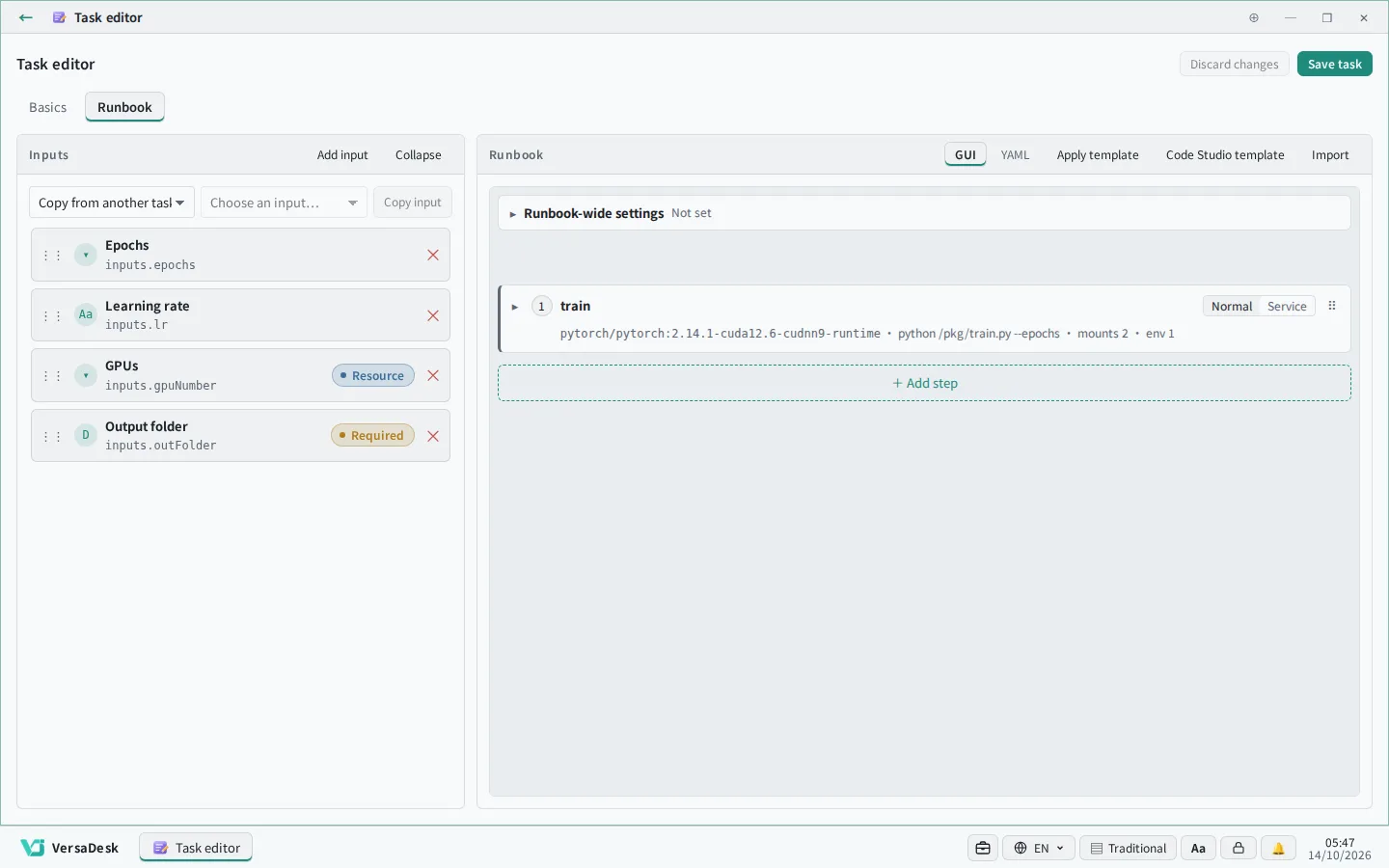
Define inputs and steps in the task editor.
Grow with you
No need to buy everything up front. Start with the machine you have and add more when you need it — on the same platform all the way.
One workstation or server — for small teams and trials.
Add spare servers and spread the work.
Build a Kubernetes cluster from the console — for departments sharing resources.
Connect the cluster IT already runs; the platform stays in its own area.
Ready as soon as it is installed; add hosts or a cluster when you need more.
Talk to us